
Have you ever turned on Flight Mode and then wondered — can I still use the internet? You’re not alone. Millions of people ask this every day, especially frequent travelers.
The good news is: yes, you can use the internet even when Flight Mode is ON — and it’s completely safe and legal. In this guide, you’ll learn exactly how it works, which options are available, and the best tips for staying connected at 30,000 feet.
What Is Flight Mode and Why Does It Exist?
Flight Mode (also called Airplane Mode) is a setting on your smartphone, tablet, or laptop that turns off all wireless signals — including cellular, Wi-Fi, and Bluetooth.
It was originally created to prevent electronic interference with aircraft navigation systems. Airlines and aviation authorities require passengers to use it during flights.
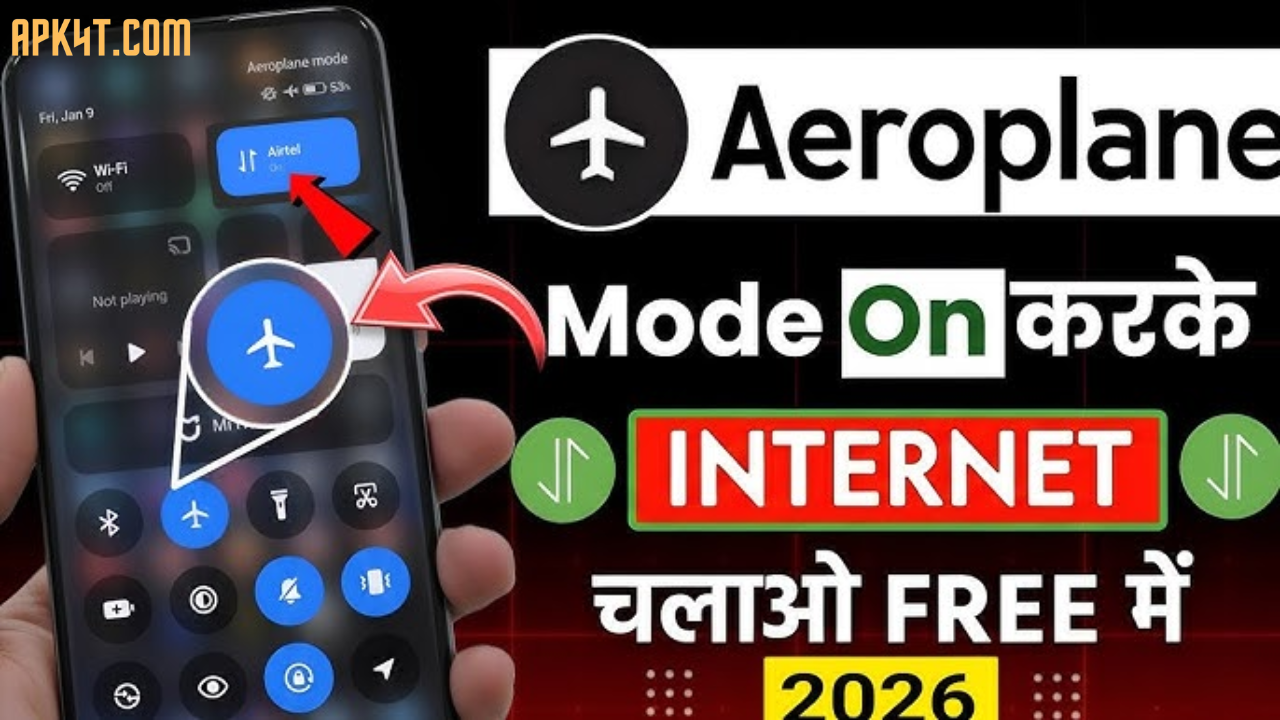
But here’s the thing — modern devices are smart. You can turn Flight Mode ON and then manually re-enable Wi-Fi or Bluetooth without affecting your cellular signal. This is the key to using the internet while Flight Mode is active.
Key Benefits of Using Internet in Flight Mode
Using internet while Flight Mode is ON actually comes with some surprising advantages:
- ✅ Saves battery life — Your phone stops searching for cellular towers, which drains battery fast
- ✅ Reduces distractions — No random calls or SMS interruptions
- ✅ Follows airline rules — You stay compliant while still browsing
- ✅ Faster Wi-Fi connection — Some users report smoother Wi-Fi performance in this mode
- ✅ Works on all devices — Android, iPhone, iPad, Windows laptop, and more
How to Enable Internet While Flight Mode is ON — Step by Step
Method 1: Enable Wi-Fi Manually After Turning On Flight Mode
This is the most common and easiest method.
On Android:
- Swipe down to open your Quick Settings panel
- Tap Flight Mode to turn it ON
- Now tap Wi-Fi to turn it back ON manually
- Connect to any available Wi-Fi network
On iPhone / iOS:
- Open Control Center (swipe down from top-right corner)
- Tap the Airplane Mode icon (it turns orange)
- Tap the Wi-Fi icon to re-enable it
- Join a Wi-Fi network as normal
On Windows Laptop:
- Click the network icon in the taskbar
- Enable Airplane Mode
- Then click Wi-Fi to turn it back on separately
💡 Quick Tip: Your phone remembers this setting. Once you manually turn Wi-Fi back on in Flight Mode, it often stays enabled next time you activate Flight Mode too.
Method 2: Use In-Flight Wi-Fi Services
Most modern commercial airlines now offer onboard Wi-Fi — and it works perfectly with your Flight Mode ON + Wi-Fi ON combination.
Popular in-flight Wi-Fi providers include:
- Gogo Inflight — widely used on US-based airlines
- ViaSat — used by several major international carriers
- Starlink Aviation — newer, high-speed satellite internet on select airlines
- Panasonic Avionics — common on long-haul international flights
How to connect:
- Enable Flight Mode, then turn Wi-Fi ON
- Look for the airline’s Wi-Fi network in your available connections
- Connect and open your browser — you’ll usually be redirected to a payment or login portal
- Follow the on-screen steps to get connected
Some airlines offer free Wi-Fi, while others charge per hour or per session. Always check your airline’s website before your flight to know what’s available.
Method 3: Use Bluetooth Devices in Flight Mode
Bluetooth also works the same way as Wi-Fi in Flight Mode.
- Turn Flight Mode ON
- Manually enable Bluetooth
- Connect your wireless headphones, keyboard, or other Bluetooth accessories
This is especially useful for long flights when you want to enjoy music or movies without cables.
Method 4: Use Offline Apps and Pre-Downloaded Content
If no Wi-Fi is available on your flight, you can still make great use of your device:
- Google Maps — Download maps for offline use before your trip
- Spotify / YouTube Music — Download playlists for offline listening
- Netflix / Amazon Prime — Download shows and movies in advance
- Google Docs / Microsoft Office — Work on documents offline, sync later
- Kindle / Reading apps — Download books and articles before boarding
This isn’t technically “internet in Flight Mode” — but it’s the next best thing when no Wi-Fi is available.
Comparison: Wi-Fi vs Cellular Data in Flight Mode
| Feature | Wi-Fi in Flight Mode | Cellular Data in Flight Mode |
|---|---|---|
| Available on flights? | ✅ Yes | ❌ No |
| Battery usage | Low | High |
| Airline compliant? | ✅ Yes | ❌ No |
| Speed | Depends on airline | N/A |
| Cost | Free or paid | Not applicable |
Pros and Cons of Using Internet in Flight Mode
✅ Pros
- Completely safe and allowed by airlines
- Saves significant battery during long flights
- Keeps you productive or entertained mid-air
- Easy to set up on any device
❌ Cons
- In-flight Wi-Fi can be slow or expensive
- Not all airlines offer Wi-Fi services
- Some apps need an active cellular signal to function properly
- Streaming quality may be limited on shared airline networks
Practical Tips for Better Connectivity in Flight Mode
Here are some real-world tips to get the most out of your connection:
- Check before you fly — Visit your airline’s website to confirm if Wi-Fi is offered and at what cost
- Download content in advance — Never rely 100% on in-flight Wi-Fi for entertainment
- Use lightweight apps — Heavy apps consume more data; use web versions when possible
- Charge your device fully — Flight Mode + Wi-Fi still uses battery, especially during long trips
- Use a VPN for security — Public airline Wi-Fi networks are shared; a trusted VPN adds a layer of privacy
- Close background apps — Prevent unnecessary data usage by closing apps you’re not using
- Check your airline’s app — Many airlines have their own apps that work on in-flight Wi-Fi for free
Frequently Asked Questions (FAQs)
Q1: Is it safe to use Wi-Fi while Flight Mode is ON? Yes, absolutely. Using Wi-Fi in Flight Mode is safe and officially allowed by airlines worldwide. It disables the cellular radio while keeping Wi-Fi active, which is the approved method for staying connected on flights.
Q2: Why does my phone show Flight Mode but Wi-Fi still works? That’s completely normal. Modern smartphones allow you to manually re-enable Wi-Fi after turning on Flight Mode. The two functions are independent — Flight Mode just turns everything off by default, but you can switch Wi-Fi back on manually.
Q3: Can I use WhatsApp or other messaging apps in Flight Mode with Wi-Fi? Yes! WhatsApp, iMessage, Telegram, and other internet-based messaging apps all work over Wi-Fi — even when your cellular service is off. As long as you’re connected to Wi-Fi, these apps function normally.
Q4: Does using Wi-Fi in Flight Mode drain the battery faster? Slightly, but not significantly. In fact, Flight Mode with Wi-Fi ON still uses far less battery than having your cellular data fully active. It’s one of the best tricks for extending battery life during long flights.
Q5: What if the airline doesn’t offer Wi-Fi? In that case, your best option is to prepare ahead of time. Download movies, music, maps, and documents before boarding. Many apps offer robust offline modes that work perfectly without any internet connection.
Conclusion
Using the internet while Flight Mode is ON is easier than most people think — and it’s something you can do right now on any modern device. Whether you’re connecting to in-flight Wi-Fi, using Bluetooth accessories, or relying on offline content, you have plenty of options to stay productive and entertained during your journey.
The simple trick? Turn on Flight Mode, then manually enable Wi-Fi. That’s it.
Next time you board a flight, give it a try. You’ll be surprised how smooth the experience can be.
Explore tools and apps that work offline to make your next trip even better — and travel smarter, not harder.