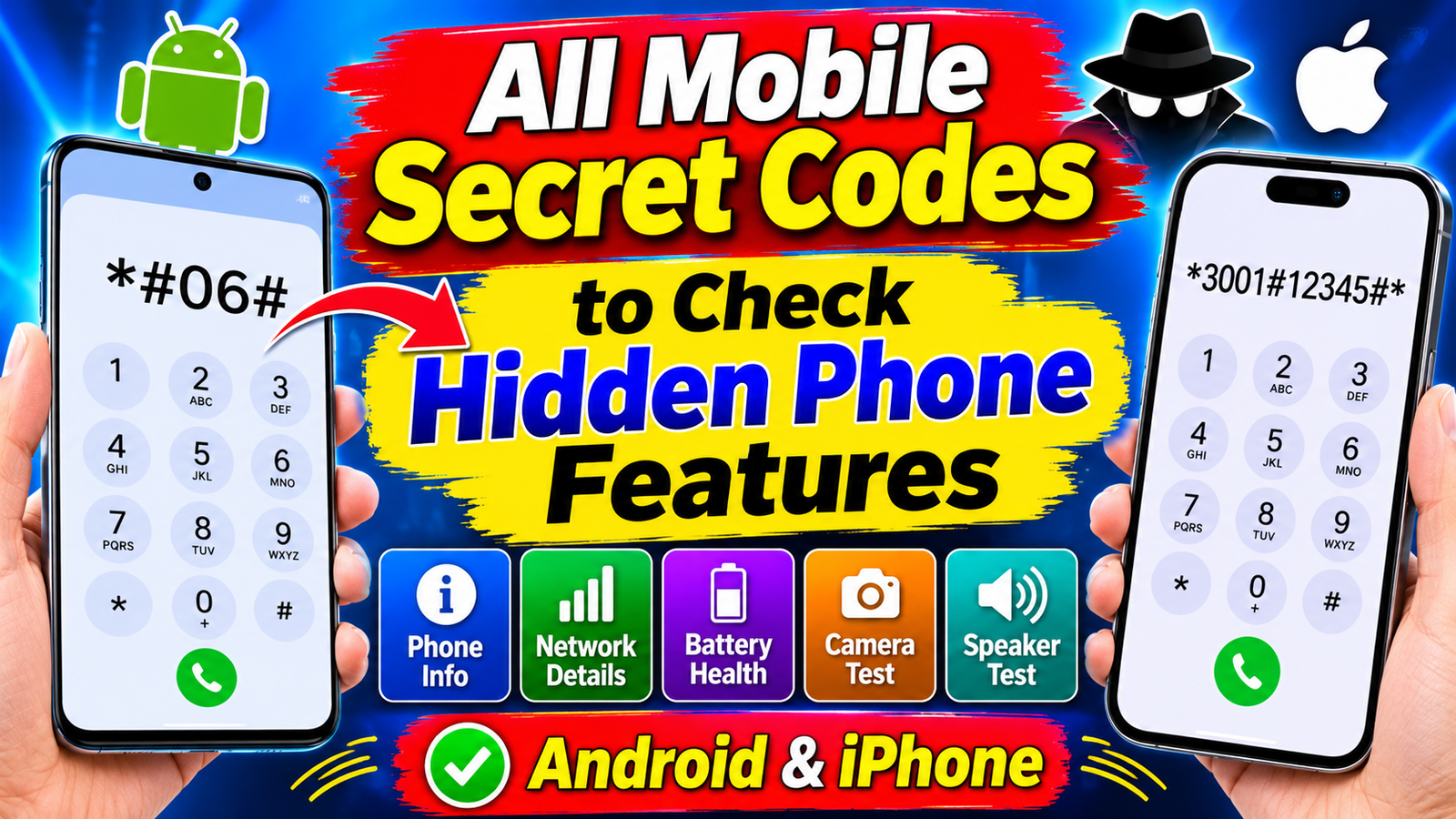

Your smartphone has several hidden features that are not always available through the normal Settings menu. Some can be accessed by entering special combinations of numbers, stars, and hash symbols into the phone dialer. These combinations are commonly known as mobile secret codes, Android secret codes, USSD codes, or diagnostic codes.
You can use supported codes to check your phone’s IMEI number, software information, network details, hardware components, battery information, and certain calling features. Some Android manufacturers also provide hidden testing menus that help identify problems with the display, speakers, touchscreen, camera, and sensors.
In this guide, you’ll find useful mobile secret codes for Android and iPhone, along with instructions on how to use them safely.
How to Use Mobile Secret Codes
Using a mobile secret code is usually simple. You don’t need a special application for most supported dialer codes.
Follow these steps:
- Open the Phone or Dialer app.
- Select the keypad.
- Enter the complete secret code exactly as shown.
- If the code is supported, a menu or information screen may appear automatically.
- For network service codes, you may need to press the Call button.
- Read the displayed information and exit the menu when finished.
Some codes work only on particular manufacturers or software versions. If nothing happens, it doesn’t necessarily mean your phone has a problem.
General Mobile Secret Codes for Android
These are some commonly used Android codes. Availability varies depending on the phone manufacturer and software.
| Secret Code | Function |
|---|---|
*#06# | Display IMEI number |
*#07# | Check SAR or regulatory information, if supported |
*#*#4636#*#* | Open phone information and testing menu, on supported devices |
*#*#225#*#* | Display calendar storage information, on supported devices |
*#*#426#*#* | Open Google Play Services diagnostics, on supported devices |
*#*#232338#*#* | Display Wi-Fi MAC address, on supported devices |
*#*#232337#*#* | Display Bluetooth address, on supported devices |
*#*#2664#*#* | Touchscreen test, on supported devices |
*#*#0289#*#* | Audio test, on supported devices |
*#*#0842#*#* | Vibration or display-related test, on supported devices |
Important: These are not universal Android codes. Many newer phones block older diagnostic sequences or provide the same information through built-in settings.
Samsung Secret Codes to Check Hidden Features
Samsung Galaxy smartphones have several manufacturer-specific diagnostic codes. Depending on your Galaxy model, region, and One UI version, these codes can open hardware testing menus and display technical information.
| Samsung Code | Function |
|---|---|
*#06# | Display IMEI number |
*#0*# | Open hardware diagnostic test menu |
*#1234# | Display firmware information |
*#0011# | Open network ServiceMode information |
*#0228# | Display battery-related information, if supported |
*#12580*369# | Display hardware and software information |
*#7353# | Open a quick diagnostic menu, on supported models |
*#2663# | Display touchscreen firmware information, on supported models |
*#0808# | Open USB connection configuration, on supported models |
*#9900# | Open system dump and diagnostic menu, on supported models |
1. Check Samsung Hardware With #0#
One of the most useful Samsung diagnostic codes is *#0*#.
On supported Galaxy phones, it opens a hardware testing menu that may include options for:
- Display and screen colors
- Touchscreen response
- Speaker and audio output
- Vibration motor
- Camera
- Sensors
This can help you identify certain hardware problems without installing a separate testing application.
2. Check Samsung Firmware With *#1234#
Enter *#1234# in the Samsung dialer to display firmware details on supported models.
This information can be useful when checking your phone’s software version or identifying firmware differences during troubleshooting.
3. Check Network Information With *#0011#
The *#0011# code opens Samsung’s ServiceMode on supported devices.
It may display technical network information such as connection type, frequency band, and signal measurements. These details are mainly useful for advanced network troubleshooting.
Do not change unfamiliar options in engineering or service menus.
Hidden Codes for iPhone
iPhones support fewer manufacturer-specific dialer codes than many Android devices. However, some useful codes can display device information or open network diagnostic screens.
| iPhone Code | Function |
|---|---|
*#06# | Display IMEI number |
*3001#12345#* | Open Field Test Mode, on supported configurations |
*#21# | Check certain call-forwarding status information, depending on carrier |
*#61# | Check conditional forwarding when unanswered, if supported |
*#62# | Check forwarding when unreachable, if supported |
*#67# | Check forwarding when busy, if supported |
*#43# | Check call-waiting status, if supported |
1. Check iPhone IMEI Number
Open the Phone app and enter:
*#06#
Your iPhone may display its IMEI information. IMEI is a unique identifier used for device identification, network services, and certain support or warranty procedures.
Keep this number private when sharing screenshots or publishing device information online.
2. Open iPhone Field Test Mode
The iPhone Field Test code is:
*3001#12345#*
Enter it in the Phone app and press Call if required.
On supported iPhones and network configurations, Field Test Mode provides technical cellular information, such as network measurements, connection details, and signal information.
The available screens depend on your iPhone model, iOS version, and mobile network.
Mobile Network and Calling Secret Codes
Some mobile dialer codes are designed to check supplementary network services rather than test phone hardware.
These codes may work on supported GSM networks, but their availability depends on your carrier and SIM configuration.
| Code | Function |
|---|---|
*#21# | Check unconditional call-forwarding status |
*#61# | Check forwarding when a call is unanswered |
*#62# | Check forwarding when the phone is unreachable |
*#67# | Check forwarding when the line is busy |
*#43# | Check call-waiting status |
*#30# | Check calling-line presentation status, where supported |
*#31# | Check outgoing caller ID restriction status, where supported |
These codes are useful when you want to understand how certain calling services are configured.
A result showing a forwarding number does not automatically mean your phone has been hacked. It may be a normal voicemail or carrier configuration.
How to Check Call Forwarding
If you want to check whether calls are being forwarded, you can try *#21#.
On supported networks:
- Open your Phone app.
- Enter
*#21#. - Press Call if required.
- Wait for the network response.
- Review the displayed forwarding status.
You can also check conditional forwarding with *#61#, *#62#, and *#67#.
Do not confuse checking a service with activating or deactivating it. Different code formats can perform different actions.
How to Check Phone Hardware Without an App
Diagnostic codes can be useful, but you don’t need to rely entirely on hidden menus. Many smartphones include built-in diagnostic tools.
Check Your Speaker
Play music or a video and listen for low volume, distortion, or crackling.
On compatible Samsung devices, the hardware test menu may include speaker tests.
Check Your Touchscreen
Open a touchscreen test on a supported device and move your finger across the screen. Look for areas where touch input does not respond correctly.
Check Your Camera
Open the front and rear cameras and test focus, image clarity, and video recording.
Check Your Sensors
Some diagnostic menus display sensor readings for proximity, acceleration, orientation, and other components.
Not every phone provides all these tests through dialer codes.
Why Some Mobile Secret Codes Do Not Work
You may enter a code correctly but receive no response. This is common and does not necessarily indicate a fault.
Possible reasons include:
- Your manufacturer does not support that code.
- Your Android or iOS version has changed the available features.
- Your mobile carrier blocks certain service codes.
- Your SIM provider uses different network commands.
- Your phone’s dialer does not recognize the code.
- The code is intended for another manufacturer or model.
For example, a Samsung hardware diagnostic code may work on one Galaxy model but not on another. Similarly, an Android information menu may be unavailable on newer devices.
Important Safety Tips Before Using Secret Codes
Not every code found online is safe to experiment with. Some advanced service codes can change network configurations, USB settings, or other device behavior. Certain reset codes can erase information or restore factory settings.
Follow these precautions:
- Use information-checking and diagnostic codes first.
- Avoid unknown factory reset and firmware codes.
- Never change options inside engineering menus unless you understand their purpose.
- Do not share your IMEI publicly.
- Avoid codes that promise free mobile data, free calls, or unauthorized network access.
- Back up important information before making major device changes.
- Confirm that a code is compatible with your exact phone model.
For regular users, checking device information and running basic hardware tests is generally more useful than changing advanced system settings.
Final Thoughts
Mobile secret codes provide another way to explore your smartphone’s hidden information and diagnostic features. You can use supported codes to check your IMEI number, network information, hardware components, firmware details, call forwarding, and other phone settings.
Android
Android devices generally offer more manufacturer-specific diagnostic menus, especially on supported Samsung Galaxy models. iPhones provide fewer dialer-based tools, but Field Test Mode can help users inspect cellular network information.
Remember that no single list contains codes that work on every mobile phone. Always check compatibility with your device before using an advanced code, and avoid unfamiliar commands that may change important settings or erase data.