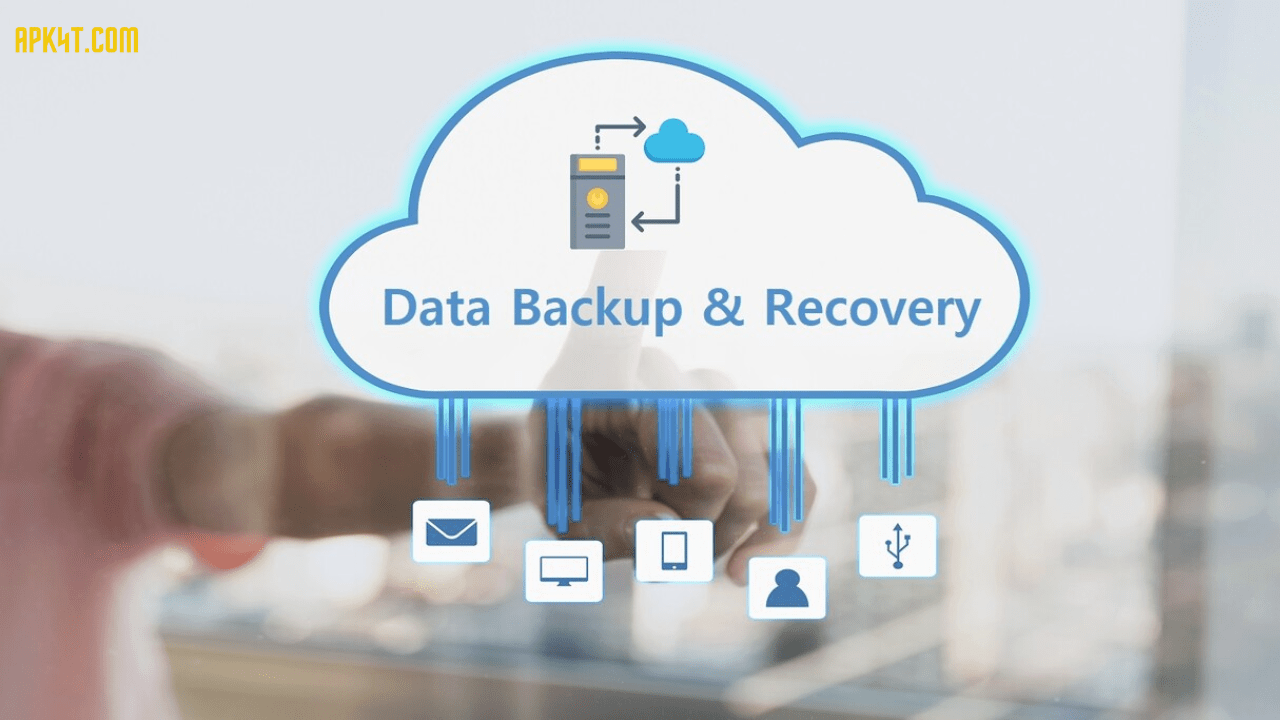

Losing your data can feel like losing a part of yourself. Whether it’s family photos, business documents, or critical files, one hard drive failure or ransomware attack can wipe everything out. Cloud backup offers peace of mind, but only if you choose legal, secure options that protect your information from hackers, unauthorized access, and compliance violations. This guide walks you through everything you need to know about backing up data safely and legally.
What is Legal Cloud Backup?
Legal cloud backup means storing copies of your files on remote servers operated by companies that follow data protection laws, maintain strong security measures, and give you control over your information. It’s not just about uploading files somewhere online—it’s about choosing services that comply with regulations like GDPR, HIPAA, or CCPA, depending on your location and industry.
The “legal” part matters because some cloud services store data in countries with weak privacy laws, share information with third parties without permission, or lack proper security certifications. Legal backup solutions are transparent about where your data lives, who can access it, and how it’s protected.
Security risks come from poor encryption, weak passwords, insider threats, or choosing providers with questionable privacy policies. This guide focuses on eliminating those risks while keeping your backups accessible when you need them.
Why Cloud Backup Matters in 2025
Traditional backup methods like external hard drives or USB sticks work, but they have serious limitations. Hard drives fail, get stolen, or get damaged in fires or floods. Cloud backup solves these problems by storing encrypted copies of your files in multiple secure data centers.
Here’s why cloud backup has become essential:
Protection from ransomware: Attacks increased 150% from 2023 to 2024. Cloud backups with versioning let you restore files before encryption happened.
Business continuity: Companies lose an average of $5,600 per minute of downtime. Cloud backups mean you’re back online in hours, not days.
Regulatory compliance: Industries like healthcare, finance, and legal services face massive fines for data breaches. Compliant cloud backup prevents violations.
Remote work support: Teams need access to files from anywhere. Cloud backup doubles as secure file sharing without emailing sensitive documents.
Automatic protection: Unlike manual backups you forget to do, cloud services run continuously in the background.
Key Features of Secure Legal Cloud Backup
End-to-End Encryption
This means your files are scrambled before leaving your device, stay encrypted during transfer, and remain encrypted on the server. Even the backup company can’t read your files. Look for services offering AES 256-bit encryption, the same standard used by governments and militaries.
Zero-Knowledge Architecture
The provider never has access to your encryption keys. Only you can decrypt your files. This prevents insider threats and government requests from exposing your data. Services like Sync.com and Tresorit use this approach.
Multi-Factor Authentication (MFA)
Requires two forms of identification to access your account—usually your password plus a code from your phone. This stops hackers even if they steal your password.
Geographic Data Control
Choose where your data physically resides. If you’re in Europe and must comply with GDPR, select providers with data centers in EU regions. This matters for legal compliance and data sovereignty.
Version History and Recovery
Good backup services keep multiple versions of your files for 30 days to unlimited time. If you accidentally delete something or need a previous version, you can restore it easily.
Compliance Certifications
Look for certifications that match your needs:
- GDPR compliance for European data
- HIPAA compliance for healthcare records
- SOC 2 Type II for business security standards
- ISO 27001 for information security management
Ransomware Detection
Advanced services monitor for suspicious activity like mass file encryption and automatically create snapshots before potential attacks complete.
Top Legal Cloud Backup Options Compared
| Service | Encryption | Zero-Knowledge | Starting Price | Best For |
|---|---|---|---|---|
| Backblaze | AES 256-bit | Optional | $9/month | Personal unlimited backup |
| IDrive | AES 256-bit | Yes | $79.50/year | Multiple devices |
| Sync.com | AES 256-bit | Yes | $8/month | Privacy-focused users |
| SpiderOak | AES 256-bit | Yes | $6/month | Maximum security |
| Tresorit | AES 256-bit | Yes | $10.42/month | Business compliance |
| Acronis Cyber Protect | AES 256-bit | Optional | $49.99/year | Ransomware protection |
| Carbonite | AES 256-bit | No | $6/month | Ease of use |
| pCloud | AES 256-bit | Optional add-on | $49.99/year | Lifetime plans available |
Understanding Data Backup vs Cloud Storage
Many people confuse backup with storage, but they serve different purposes:
Cloud Storage (Google Drive, Dropbox, OneDrive):
- Syncs files across devices
- Primary storage location
- If you delete a file, it’s gone everywhere
- Great for collaboration and access
- Not designed for disaster recovery
Cloud Backup (Backblaze, IDrive, Acronis):
- Copies files automatically
- Keeps multiple versions
- Protects against deletion, corruption, and ransomware
- Designed for recovery after data loss
- Runs silently in background
The smart approach: Use both. Store working files in cloud storage for easy access. Use cloud backup to protect everything including your operating system, applications, and that cloud storage folder.
How to Choose the Right Backup Solution
Assess Your Needs First
Personal users need:
- Unlimited storage for photos, documents, and media
- Easy restore process
- Mobile backup for phone photos
- Reasonable price under $10 monthly
Small businesses need:
- Multi-user support
- Backup for servers and databases
- Compliance with industry regulations
- Fast recovery time objectives (RTO)
- Priority support
Enterprises need:
- Custom retention policies
- Integration with existing IT infrastructure
- Advanced threat detection
- Dedicated account management
- SLA guarantees
Evaluate Security Standards
Don’t just trust marketing claims. Check:
- Does the provider publish security audits?
- Are data centers certified (ISO 27001, SOC 2)?
- What’s their incident response history?
- Do they offer private encryption keys?
- Can they access your data? (They shouldn’t be able to)
Check Legal Compliance
If you handle sensitive data, verify:
- Healthcare: HIPAA compliance mandatory
- Finance: SOC 2, PCI DSS required
- Legal: Client confidentiality protections
- EU residents: GDPR compliance non-negotiable
- California residents: CCPA compliance needed
Test Recovery Speed
Backup speed matters, but recovery speed matters more. A service that takes three weeks to restore your data is useless. Look for:
- Download speeds for file restoration
- Local recovery options (ship a hard drive)
- Partial restore capabilities (get just what you need)
- Emergency access from any device
Step-by-Step Setup for Maximum Security
1. Choose Your Provider
Based on the comparison table and your specific needs, select a provider with proper certifications. For most people, Backblaze, IDrive, or Sync.com offer the best balance of security, price, and usability.
2. Create a Strong Master Password
Use a password manager like Bitwarden or 1Password to generate a unique 16+ character password. Never reuse passwords from other accounts. If you forget this password with zero-knowledge backup, your data is permanently inaccessible.
3. Enable Two-Factor Authentication
Use an authenticator app like Authy or Google Authenticator rather than SMS, which can be intercepted. Save backup codes in a secure location offline.
4. Configure Backup Settings
What to back up:
- Documents folder
- Desktop files
- Pictures and videos
- Application data (depending on service)
- Email archives (if not in cloud already)
- Browser bookmarks and passwords
What to exclude:
- Operating system files (unless doing complete system backup)
- Program files (can be reinstalled)
- Temporary files and caches
- Files already backed up elsewhere
5. Set Backup Frequency
Daily automatic backups work for most users. Continuous backup in real-time better protects against ransomware. Choose weekly for files that rarely change.
6. Verify Backups Work
Run a test restore within the first week. Pick a random file and restore it to a test folder. Many people discover backup problems only when disaster strikes—by then it’s too late.
7. Monitor Backup Status
Check monthly that backups complete successfully. Most services email alerts if backups fail, but don’t rely on this alone.
Pros and Cons of Cloud Backup Solutions
Pros:
✅ Automatic protection without remembering to backup
✅ Access files from anywhere with internet
✅ Protection from physical disasters (fire, flood, theft)
✅ Multiple file versions prevent accidental deletion
✅ Scalable storage grows with your needs
✅ Professional-grade security most individuals can’t achieve locally
✅ Ransomware recovery through previous versions
Cons:
❌ Requires stable internet connection for large restores
❌ Monthly or annual costs add up over time
❌ Initial backup of terabytes can take days or weeks
❌ Privacy concerns if provider has encryption keys
❌ Bandwidth limits from ISP may apply
❌ Complete dependence on provider staying in business
❌ Lost master password means lost data with zero-knowledge systems
Best Practices for Maintaining Secure Backups
Follow the 3-2-1 Backup Rule
Keep 3 copies of important data on 2 different types of media with 1 copy offsite. Example:
- Original files on your computer
- Local backup on external hard drive
- Cloud backup offsite
This protects against all common failure scenarios.
Encrypt Before Upload (Optional Extra Layer)
For maximum paranoia, encrypt files with VeraCrypt or Cryptomator before uploading to cloud backup. This adds a second encryption layer but makes restoring more complex.
Regular Security Audits
Every six months:
- Review who has access to your backup account
- Check for login attempts from unknown locations
- Update master password
- Verify MFA still works
- Test restore process again
Keep Critical Recovery Information Offline
Write down these items and store in a safe:
- Master password (if you absolutely must)
- Two-factor authentication backup codes
- Account recovery email and security questions
- Names of services used
If you’re incapacitated, family members need this information to access important files.
Monitor for Data Breaches
Use services like Have I Been Pwned to check if your backup account email appears in breaches. Change passwords immediately if compromised.
Common Security Risks and How to Avoid Them
Weak Passwords
Risk: Hackers crack simple passwords in minutes using brute force attacks.
Solution: Use 16+ character passwords with uppercase, lowercase, numbers, and symbols generated by password managers.
Sharing Accounts
Risk: Multiple people with access increase breach chances and make auditing impossible.
Solution: Each person gets their own account with appropriate permissions.
Unencrypted Connections
Risk: Data intercepted during transfer over public WiFi.
Solution: Reputable backup services use TLS/SSL encryption automatically. Verify you see “https” in web interface URLs.
Ignoring Software Updates
Risk: Outdated backup clients have security vulnerabilities attackers exploit.
Solution: Enable automatic updates or check monthly for new versions.
No Testing
Risk: Discovering backups don’t work during an emergency.
Solution: Quarterly test restores of random files to verify integrity.
Insider Threats
Risk: Employees or family members with access delete or steal data.
Solution: Use zero-knowledge encryption and limit account sharing.
Phishing Attacks
Risk: Fake emails trick you into giving backup credentials.
Solution: Never click links in emails claiming to be from backup providers. Always access accounts through bookmarked URLs or official apps.
Legal Considerations by Industry
Healthcare Providers (HIPAA)
Must use Business Associate Agreement (BAA) with backup provider. The provider must be willing to sign BAA confirming they’ll protect patient data. Services like Backblaze and IDrive offer HIPAA-compliant plans.
Requirements:
- Encryption in transit and at rest
- Access logging and monitoring
- Ability to provide audit trails
- Data breach notification procedures
Financial Services
Subject to regulations like GLBA, SOX, and PCI DSS depending on specific operations. Cloud backup must include:
- Multi-factor authentication mandatory
- Encryption standards meeting PCI requirements
- Regular penetration testing
- Incident response documentation
Legal Firms (Attorney-Client Privilege)
Client data requires maximum confidentiality protection. Use zero-knowledge providers where even the backup company can’t access files. Document your security measures for professional liability protection.
General Businesses (GDPR/CCPA)
If you handle EU or California resident data, ensure:
- Data processing agreements with provider
- Right to deletion capabilities
- Data portability options
- Clear privacy policies
- Consent management
Educational Institutions (FERPA)
Student records need protection equivalent to healthcare data. Backup services must offer:
- Role-based access controls
- Detailed activity logging
- Data residency in appropriate jurisdictions
Cost Analysis: Is Cloud Backup Worth It?
Let’s compare options for a typical user with 500GB of data:
External Hard Drive Option:
- 2TB external drive: $60 every 3-4 years
- Requires manual backup discipline
- Risk of physical damage, theft, or failure
- No offsite protection
- Cost: ~$15-20 annually
Cloud Backup Option:
- Backblaze: $9/month = $108/year
- Automatic protection
- Unlimited storage
- Offsite disaster protection
- Version history included
- Cost: $108 annually
The real question: What’s your data worth? If losing all photos of your kids, tax records, or business files would cost more than $108 in time, money, or emotional distress, cloud backup pays for itself.
For businesses, calculate:
- Average hourly revenue
- Hours of downtime to recreate lost data
- Regulatory fines for data loss
- Customer trust and reputation damage
Most businesses find backup costs are 1-5% of the potential loss from data disasters.
Frequently Asked Questions (FAQs)
Q: Can the government access my cloud backup files?
A: With zero-knowledge encryption (like Sync.com or SpiderOak), even government requests can’t access your files because the provider doesn’t have decryption keys. With standard encryption where providers hold keys, they may be legally required to comply with valid warrants, though policies vary by country.
Q: What happens if the backup company goes out of business?
A: Reputable providers give advance notice allowing you to download all files. This is why the 3-2-1 backup rule recommends multiple backup copies. Read provider terms about data access during company transitions. Some services like pCloud offer lifetime plans reducing this risk.
Q: How long does initial backup take for 1TB of data?
A: With average home internet upload speed of 10 Mbps, expect 10-14 days for continuous uploading. Most services throttle to not overwhelm your connection. You can often request a physical drive shipment to seed initial backup faster for large datasets.
Q: Is cloud backup safe from ransomware?
A: Yes, if your service offers version history. When ransomware encrypts files, restore from a version saved before the attack. Services like Acronis specifically detect ransomware behavior and automatically create snapshots. Never sync backup services in real-time sync mode or ransomware can spread to backups.
Q: Can I backup external hard drives and network drives?
A: Most services support external drive backup, though some count it against storage limits. Network attached storage (NAS) backup depends on the service—IDrive and Acronis handle NAS well. Check specific provider documentation for device support.
Conclusion
Protecting your data doesn’t require expensive IT departments or technical expertise anymore. Legal cloud backup solutions combine military-grade encryption, compliance certifications, and user-friendly interfaces to keep your files safe from disasters, theft, and cyberattacks. The key is choosing a provider that respects your privacy through zero-knowledge encryption, follows regulations relevant to your situation, and offers reliable recovery when disaster strikes. Start with services like Backblaze for simplicity, IDrive for multiple devices, or Sync.com for maximum privacy. Set up automatic backups today so you never have to experience the sinking feeling of losing irreplaceable data.
Ready to protect your files? Choose a provider from the comparison table, sign up for a free trial, and run your first backup this week. Your future self will thank you when hardware fails, ransomware strikes, or accidents happen.