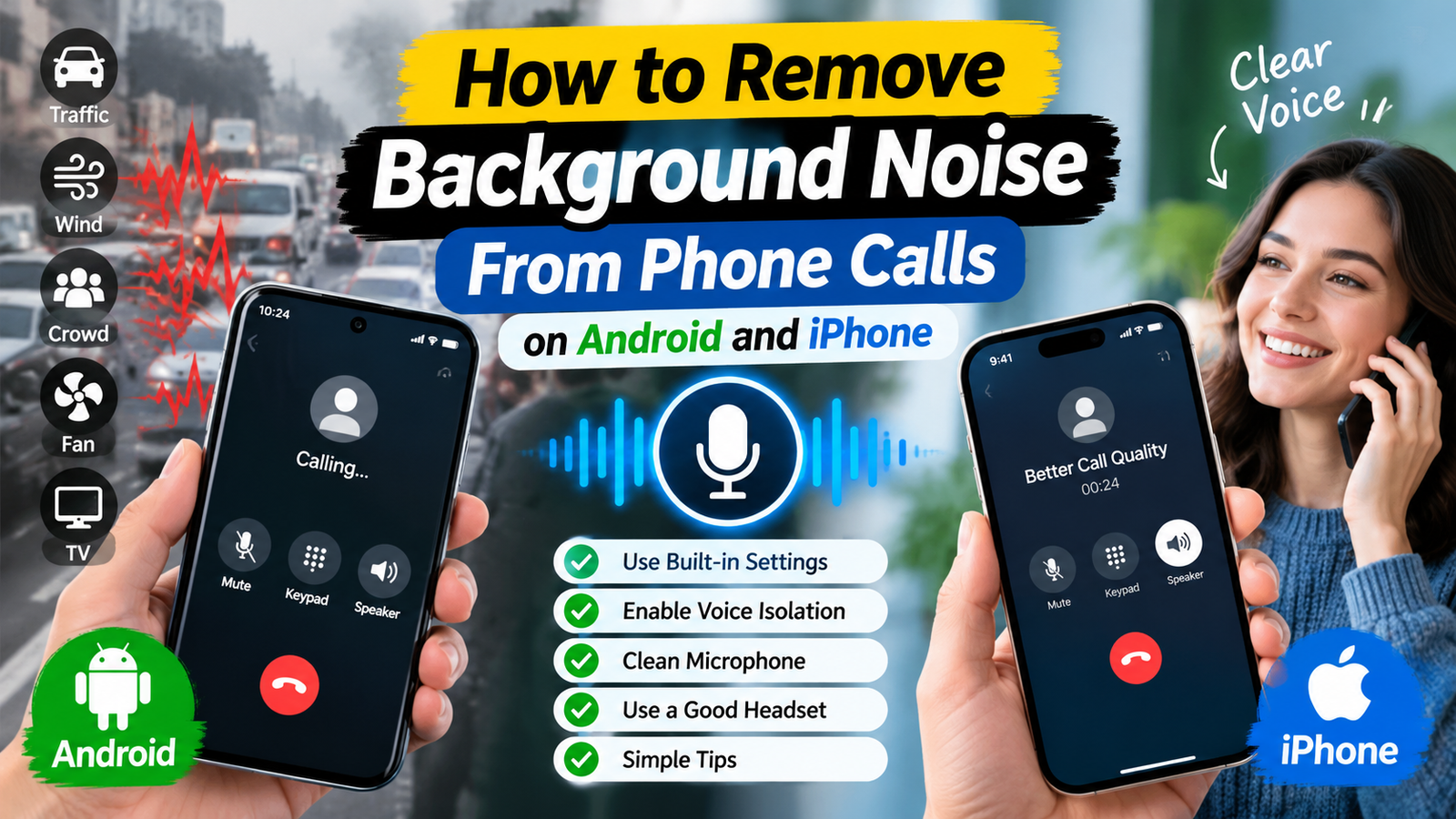

Background noise during phone calls can make conversations difficult, especially when you’re in a busy street, office, market, or crowded home. Traffic, wind, fans, television sounds, and nearby conversations can interfere with your voice and make it harder for the other person to understand you. Fortunately, you can try several methods to reduce background noise during phone calls on Android and iPhone without necessarily installing another app.
Modern smartphones include different audio-processing features designed to improve voice clarity. Depending on your phone model, you may also have access to voice isolation, noise suppression, or microphone enhancements. Understanding these features can help you make clearer calls in noisy environments.
Why Is There Background Noise During Phone Calls?
Before changing your settings, it helps to understand where the noise comes from. Your phone’s microphone captures your voice along with sounds from the surrounding environment. Software can reduce some unwanted sounds, but it cannot eliminate every type of noise.
Common causes include:
- Traffic, wind, and outdoor environmental sounds
- Fans, air conditioners, and household appliances
- Conversations and television sounds in the background
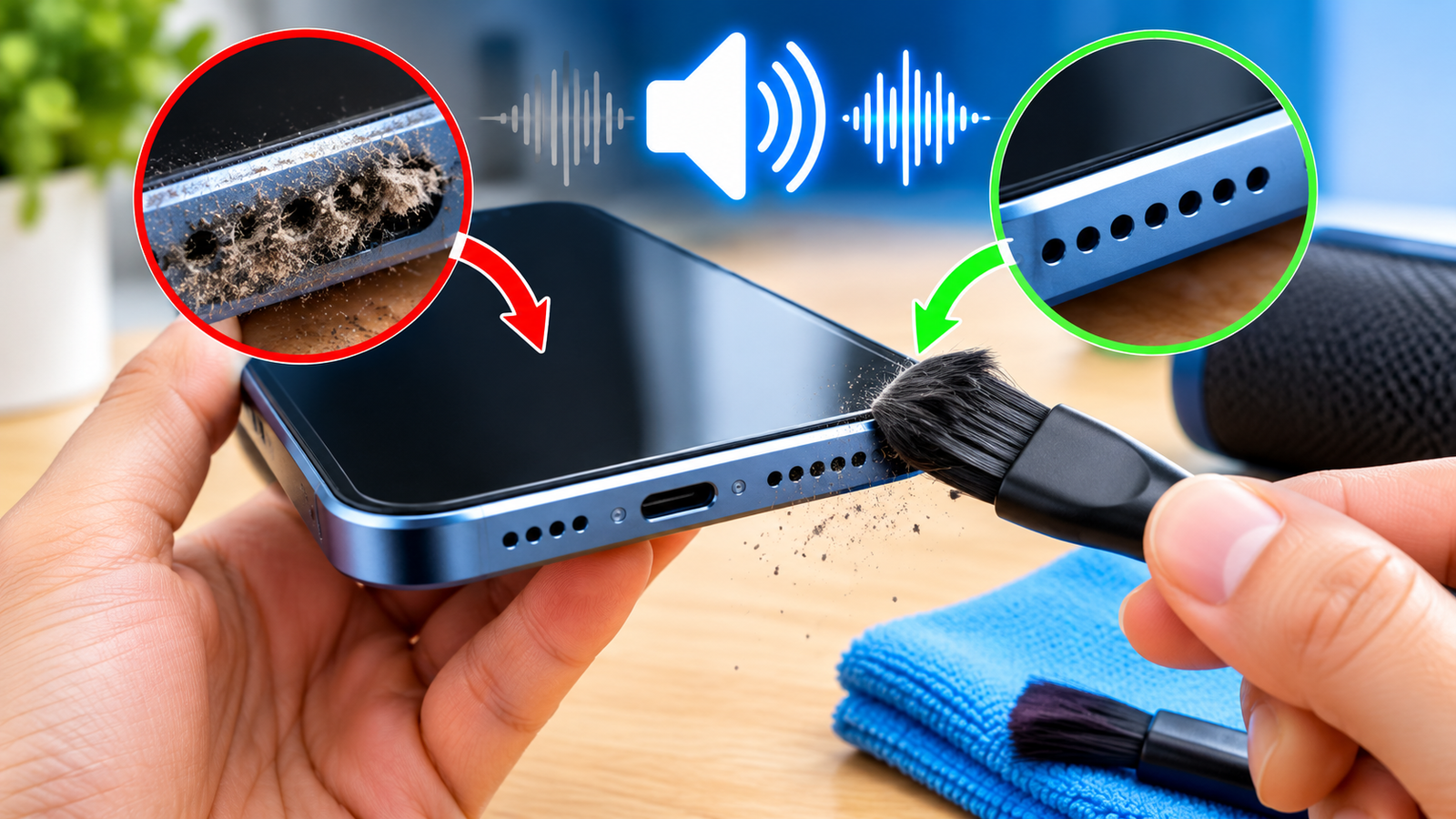
- Dust or debris covering the microphone openings
- A damaged microphone or poorly fitting phone case
- Weak network connections that make voices sound distorted
- Headphones or Bluetooth devices with poor microphone quality
The best solution depends on whether the noise comes from your surroundings, your phone’s microphone, or the call connection.
How to Reduce Background Noise During Calls on Android
Android phones from Samsung, Google, Xiaomi, OnePlus, and other manufacturers may offer different noise-reduction features. The exact setting depends on the model, software version, and calling app.
1. Check Your Phone’s Call Settings
Some Android devices include a noise-reduction option in their phone or call settings.
To check:
- Open the Phone app.
- Tap the three-dot menu or Settings icon.
- Look for options related to call settings, noise reduction, or voice enhancement.
- If a relevant feature is available, enable it.
- Make a test call to check whether the other person hears you more clearly.
Not every Android phone includes a separate noise-reduction toggle. If you cannot find this option, your device may handle background noise automatically or provide the feature elsewhere.
2. Use Samsung Voice Focus or Available Call Enhancements
Some Samsung Galaxy phones provide microphone or voice-processing features that help improve clarity during supported calls.
On compatible Galaxy devices, you may be able to access microphone modes during a call:
- Start or answer a call.
- Open the Quick Settings panel while the call is active.
- Look for a microphone mode or voice-related option, if available.
- Select a mode designed to prioritize your voice or reduce background sounds.
- Test the call in your usual environment.
The name and availability of these options vary by device, One UI version, and calling app. If the feature is not available, check your phone’s current support documentation rather than assuming every Galaxy model has it.
3. Check Google Pixel Clear Calling
Compatible Google Pixel phones offer Clear Calling, which can reduce certain background sounds during calls.
To check whether your device supports it:
- Open Settings.
- Search for “Clear Calling.”
- Open the feature if it appears.
- Turn it on if available.
- Test a phone call in a noisy environment.
Clear Calling availability depends on the Pixel model, software version, and supported conditions. If you cannot find the setting, your device may not support the feature.
4. Try a Headset With a Good Microphone
A headset can improve call clarity when your phone’s built-in microphone picks up too much environmental noise.
Choose headphones with a microphone designed for calls and noise suppression. Position the microphone as recommended by the manufacturer.
However, noise cancellation in headphones does not always mean that the microphone filters background noise from your outgoing voice. Some features primarily reduce the noise you hear rather than the noise the other person hears.
For the best result, choose a headset with effective microphone noise reduction.
How to Reduce Background Noise During Calls on iPhone
Apple provides microphone modes on supported iPhone models and software versions. These can help make your voice clearer in certain calling situations.
1. Enable Voice Isolation on iPhone
Voice Isolation is designed to prioritize your voice and reduce surrounding noise during supported calls.
On compatible iPhones and supported calling apps, try these steps:
- Start or answer a call.
- Open Control Center while the call is active.
- Tap the available app controls or microphone mode controls.
- Select Voice Isolation if it appears.
- Return to the call and check the audio quality.
The exact interface depends on your iOS version and the calling app. Voice Isolation is not available in every calling situation, and some third-party apps may implement their own audio settings.
If you do not see the option, check that your iPhone and app are updated and that the call type supports microphone modes.
2. Understand Standard and Wide Spectrum Modes
Depending on your iPhone, iOS version, and calling app, you may see additional microphone modes.
Standard: Uses the normal microphone processing for the call.
Voice Isolation: Prioritizes your voice and attempts to reduce unwanted background sounds.
Wide Spectrum: Allows more surrounding sound to be heard rather than focusing as strongly on your voice.
If your goal is to make your voice clearer in a noisy environment, Voice Isolation is generally the mode to try first when available.
3. Clean the iPhone Microphone Openings
If your iPhone sounds noisy or muffled during every call, check whether the microphone openings are blocked.
Follow these precautions:
- Remove the phone case temporarily.
- Inspect the microphone openings for visible dirt.
- Use a soft, dry brush to gently remove loose debris from the exterior.
- Avoid inserting objects into the openings.
- Do not pour liquid into the microphone area or use compressed air.
If the microphone remains muffled after gentle cleaning, the phone may require professional inspection.
How to Reduce Background Noise on WhatsApp Calls
WhatsApp calls may handle audio differently from regular cellular calls. The options available depend on your device, operating system, and app version.
Try the following steps:
- Update WhatsApp from your device’s official app store.
- Check whether your phone offers Voice Isolation or another microphone mode during the call.
- Move away from fans, traffic, and other noise sources.
- Use a suitable headset if the built-in microphone picks up too much noise.
- Make a test call and ask the other person whether your voice sounds clearer.
On supported iPhones, Voice Isolation may work during compatible WhatsApp calls. Availability can vary, so do not assume the same controls will appear on every phone.
If WhatsApp calls sound noisy but regular calls sound normal, the issue may be related to the app, network conditions, or the audio route being used.
How to Remove Background Noise Without an App
You can often improve call quality without downloading additional software. Start with these practical changes.
Move to a Quieter Location
Moving away from traffic, fans, televisions, and crowded areas can make a noticeable difference. Even a small change in location may reduce the noise reaching your microphone.
Keep the Microphone Clear
Avoid covering the microphone with your fingers while holding the phone. Make sure your case does not obstruct the microphone openings.
Clean visible dust gently with a soft, dry brush. Never use sharp objects or liquids inside the openings.
Position the Phone Correctly
Hold the phone in its normal calling position, with the microphone unobstructed. Avoid placing your hand over the bottom microphone or speaking from too far away when using speakerphone.
If you are using speakerphone, try switching to the normal earpiece mode. Speakerphone can expose the microphone to more environmental noise and may pick up sounds from the phone’s own speaker.
Reduce Wind Noise
Wind can overwhelm a phone microphone, especially outdoors.
To reduce it:
- Move behind a wall or another windbreak.
- Turn away from strong wind.
- Avoid placing the microphone directly into the airflow.
- Use a headset with an appropriate microphone and wind protection.
Software noise reduction may struggle with strong wind, so changing your position is often more effective.
Best Settings for Clear Phone Calls
The most useful settings depend on your phone and where you make calls.
| Situation | What to Try |
|---|---|
| Noisy outdoor environment | Voice Isolation, if supported, and a quieter position |
| Busy office | Voice-focused microphone mode and a suitable headset |
| Windy conditions | Move out of the wind and use appropriate microphone protection |
| Muffled voice | Check the microphone openings and remove the case temporarily |
| Noisy WhatsApp calls | Check supported microphone modes and network quality |
| Poor sound on every call | Test different call types and inspect the microphone |
| Noise only on speakerphone | Switch to the normal earpiece mode |
Remember that settings designed to cancel noise in your headphones may not reduce the noise transmitted to the other person. For outgoing call quality, microphone processing is especially important.
How to Fix Background Noise if Nothing Works
If the other person still hears noise after you change your settings, perform a few simple checks.
Test Different Calling Methods
Make one regular cellular call and one call through a supported internet-calling app.
If the problem occurs only in one app, check its settings, update it, and test your internet connection.
If every call has the same problem, inspect the phone’s microphone and accessories.
Disconnect Bluetooth Devices
Your phone may be using the microphone on a connected headset, car system, or other Bluetooth device.
Temporarily disconnect Bluetooth and make another call using the phone’s built-in microphone. If the sound improves, the connected device may be causing the problem.
Check the Network Connection
Poor cellular reception or an unstable internet connection can make calls sound choppy, distorted, or unclear. This can be mistaken for background noise.
Try calling from a location with better reception or using a stable Wi-Fi connection for internet calls.
Check for Microphone Damage
If callers consistently report muffled audio, crackling, or unusually loud background noise, even in a quiet room, the microphone may be damaged or obstructed.
If the problem began after a drop, liquid exposure, or repair, consider professional inspection rather than repeatedly cleaning the openings.
Do Noise-Reduction Apps Really Work?
Some apps offer voice enhancement, recording cleanup, or noise reduction. However, an app that removes background noise from a recorded audio file does not necessarily filter noise during a live phone call.
Before installing an app, check whether it explicitly supports live calls on your device and calling platform.
Be cautious with apps that request unnecessary microphone, contact, accessibility, or other sensitive permissions. Download software only from reputable sources and review its privacy practices.
For many users, built-in microphone modes, better microphone positioning, and a suitable headset are the simplest options to try first.
Final Thoughts
You can often reduce background noise during phone calls on Android and iPhone by enabling an available voice-focused microphone mode, cleaning the exterior microphone area safely, disconnecting a poor-quality Bluetooth device, and moving to a quieter location.
On compatible iPhones, try Voice Isolation during supported calls. On supported Android devices, look for manufacturer-specific features such as Clear Calling on compatible Pixel phones or available microphone enhancements on Galaxy devices.
Get Now
If the problem continues across all calling apps, test the phone in a quiet environment and check for microphone damage. No setting can eliminate every sound, but the right combination of phone settings, microphone positioning, and a suitable headset can make conversations significantly clearer.