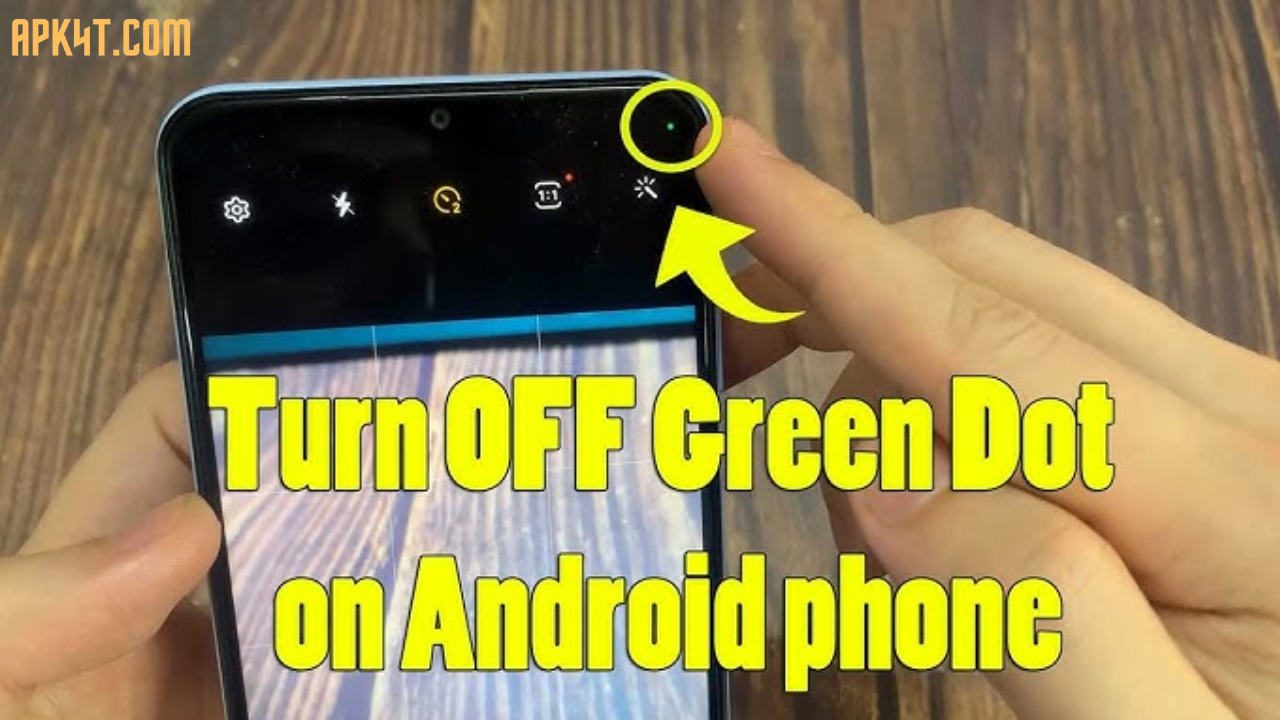

Have you ever noticed a small green dot appearing at the top of your phone screen and wondered what it means? You’re not alone — millions of users around the world see this little dot and feel confused or even worried.
The good news is that it’s not a bug or a sign that your phone is broken. In this guide, you’ll learn exactly what the green dot means, why it appears, and what you can do to stop it from showing up.
What Is the Green Dot Indicator?
The green dot is a privacy indicator built into both Android and iPhone operating systems. It appears in the top corner of your screen whenever an app is actively using your phone’s camera or microphone.
Think of it like a small warning light on a car dashboard — it’s there to protect you, not to cause panic.
On Android, this feature was introduced with Android 12 and is available on almost all modern Android phones, including Samsung, Google Pixel, OnePlus, and others.
On iPhone, Apple introduced a similar feature with iOS 14. The green dot specifically means the camera is in use, while an orange dot means the microphone is being accessed.
Why Does the Green Dot Appear?
The green dot shows up when:
- You open a camera app to take a photo or video
- You make a video call on apps like WhatsApp, Zoom, or FaceTime
- A social media app like Instagram or Snapchat is scanning your camera
- A voice assistant is listening through your microphone
- Any app running in the background accesses your camera or mic without you realizing it
The last point is where the green dot becomes really useful. It tells you if an app is secretly using your camera or microphone even when you’re not actively using it.
Key Benefits of the Green Dot
Before you try to get rid of the green dot, it’s worth understanding why it’s actually a good thing:
- Protects your privacy by alerting you when any app accesses your camera or mic
- Helps you spot suspicious apps that might be recording without permission
- Gives you control over what apps can and cannot do on your device
- Works silently in the background without slowing your phone down
Most experts recommend keeping this feature turned on. However, if you find it distracting or want to manage specific apps, there are ways to reduce how often it appears.
How to Remove or Manage the Green Dot on Android
Method 1: Close the App That’s Causing It
The simplest solution is to close the app that is using your camera or microphone.
- Swipe up from the bottom of your screen (or tap the square/recent apps button)
- Find the app that is causing the green dot
- Swipe it away to close it
Once the app is closed, the green dot will disappear.
Method 2: Revoke Camera or Microphone Permissions
If a specific app keeps triggering the green dot and you don’t want it to, you can remove its permission to use your camera or mic.
- Open Settings on your phone
- Go to Apps and tap See all apps
- Select the app you want to restrict
- Tap Permissions
- Tap Camera or Microphone and select Don’t Allow
After this, that app will no longer be able to use your camera or microphone — and the green dot will stop appearing because of it.
Note: This may affect some features in the app. For example, if you block camera access for WhatsApp, you won’t be able to make video calls.
Method 3: Check Which App Is Using the Camera
If you see the green dot but aren’t sure which app is causing it:
- Swipe down from the top of your screen to open the notification panel
- Look for a small camera or microphone icon near the top
- Tap on it to see which app is currently using your camera or mic
This helps you identify the source and decide what to do next.
Can You Fully Turn Off the Green Dot on Android?
Unfortunately, you cannot completely disable the green dot on a standard Android phone. It is a built-in part of the operating system’s privacy system and cannot be switched off from the regular Settings menu.
The best approach is to manage app permissions so fewer apps have access to your camera and microphone in the first place.
How to Remove or Manage the Green Dot on iPhone
Method 1: Close the App
- Swipe up from the bottom of the screen to see all open apps
- Find the app that is using the camera
- Swipe up on it to close it
The green dot should disappear once the app is fully closed.
Method 2: Check Which App Is Using Your Camera
- Swipe down from the top-right corner of your iPhone screen to open Control Center
- At the top, you will see a small icon and the name of the app currently using your camera or microphone
- Go back to your home screen and close that app
Method 3: Turn Off Camera or Microphone Access for Specific Apps
- Open Settings on your iPhone
- Scroll down and tap Privacy & Security
- Tap Camera (or Microphone)
- You will see a list of all apps that have requested access
- Toggle off any app that you don’t want to have camera or microphone access
This is one of the most effective ways to stop the green dot from appearing for apps that don’t really need camera or mic access.
Method 4: Use App Privacy Report
iPhones have a built-in tool called App Privacy Report that shows you exactly which apps have been using your camera, microphone, and other sensitive data.
- Go to Settings
- Tap Privacy & Security
- Scroll down to App Privacy Report and turn it on
After a few days, it will show you a detailed report of all app activity. This is a great way to find out which apps are accessing your camera more than they should.
Can You Fully Turn Off the Green Dot on iPhone?
No, Apple does not allow you to completely disable the green dot. It is a core privacy protection feature and cannot be removed from the iOS settings.
The best way to manage it is to control which apps have permission to use your camera and microphone.
Pros and Cons of the Green Dot
| Pros | Cons |
|---|---|
| Alerts you to privacy risks | Can feel distracting during normal use |
| Helps identify suspicious apps | Cannot be turned off completely |
| Works automatically with no setup | May appear frequently with camera-heavy apps |
| Free, built-in privacy tool | Causes mild confusion for new users |
Practical Tips to Manage the Green Dot Better
Here are some helpful habits to keep your privacy safe while reducing unnecessary green dot appearances:
Review app permissions regularly. Every few months, go through your phone’s app permission settings and remove camera or mic access for any app that doesn’t need it.
Be careful when installing new apps. Only download apps from trusted sources like the Google Play Store or Apple App Store. When an app asks for camera or microphone permission, ask yourself if it really needs it.
Update your apps and phone software. Keeping everything updated ensures that apps behave properly and security issues are fixed.
Pay attention when the dot appears unexpectedly. If you see the green dot while your screen is idle or while using a simple app like a calculator, that is a sign something unusual is happening. Check your app permissions right away.
Restart your phone if the dot won’t go away. Sometimes a quick restart can stop background apps from running and clear the green dot.
FAQs
Q: Is the green dot on my phone a sign that I’m being hacked? Not necessarily. In most cases, the green dot simply means a regular app — like your camera, Instagram, or Zoom — is using your microphone or camera. However, if you see it when you’re not using any camera or voice app, it’s a good idea to check your app permissions right away.
Q: Can I permanently remove the green dot from my Android or iPhone? No, there is no built-in option to fully disable the green dot on either Android or iPhone. But you can stop it from appearing frequently by revoking camera and microphone permissions from apps that don’t need them.
Q: Why does the green dot appear even when I’m not using my camera? Some apps run in the background and continue to access your camera or microphone even when you’re not actively using them. Closing the app completely or removing its permissions will stop this from happening.
Q: Is the orange dot on iPhone the same as the green dot? No. On iPhone, the green dot means your camera is in use, while the orange dot means your microphone is being accessed. Both serve the same purpose — to notify you of privacy-sensitive activity.
Q: Does the green dot affect battery life or performance? The dot itself does not affect your phone’s performance. However, if an app is running in the background and constantly accessing your camera or microphone, that activity can drain your battery. Closing such apps can help improve battery life.
Conclusion
The green dot on your Android or iPhone is a smart privacy feature designed to keep you informed and safe. While you cannot remove it entirely, you have full control over which apps can trigger it.
By managing your app permissions, closing unused apps, and staying aware of unusual activity, you can protect your privacy without any stress.
If you want to go deeper into managing your phone’s privacy settings, explore the privacy and security section in your phone’s Settings — there’s a lot you can do to take full control of your device.
Last updated: 2025 | For informational purposes only